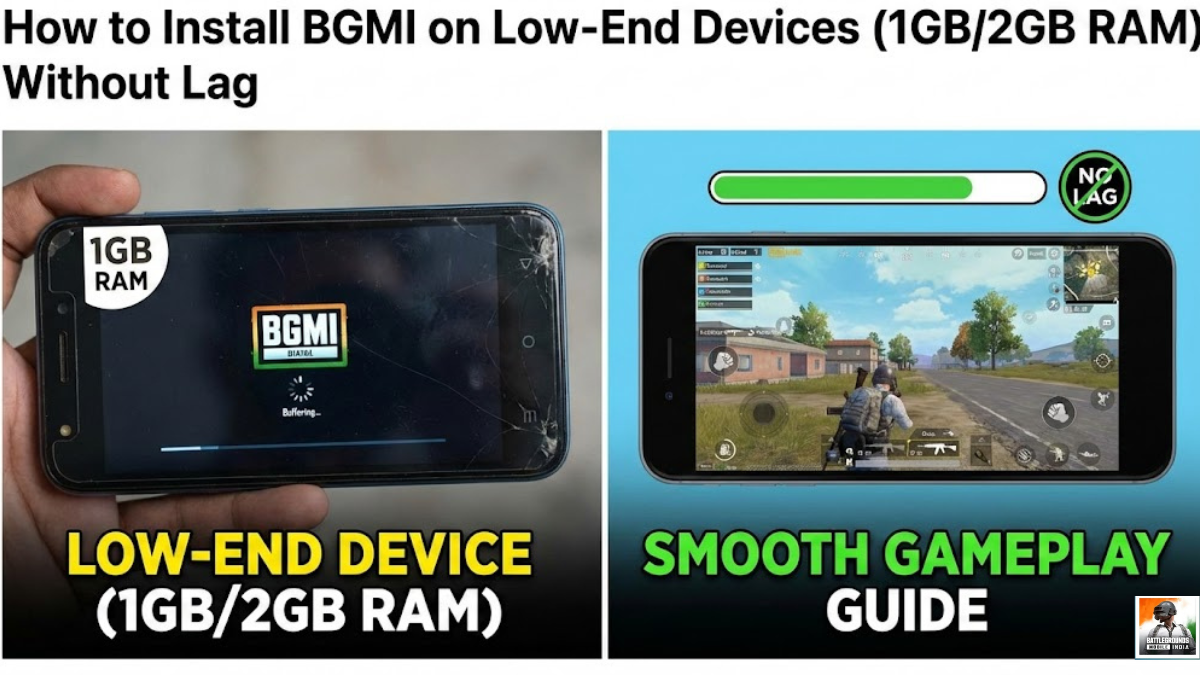
Subtitle: Still rocking an older phone? Don’t let the hardware hold you back. Here is your realistic survival guide to getting a playable BGMI experience on a “potato” phone.
Let’s be real for a second.
There is nothing worse than being in the final circle in BGMI, spotting the last enemy, aiming down your sights… and then your phone freezes. By the time the frame unfreezes, you’re staring at the “Better Luck Next Time” screen.
If you are reading this, you probably own a device with 1GB or 2GB of RAM. You want to play BGMI with your squad, but your phone acts like a toaster whenever you boot it up. I feel your pain. I’ve been there.
The good news? You can play BGMI on a low-end device. The hard truth? It won’t look pretty, and we have to make some serious sacrifices.
If you are willing to trade graphics for gameplay, follow this guide. We are going to squeeze every ounce of performance out of your phone to get a (mostly) lag-free experience.
The Reality Check (Read This First)
Before we start installing things, manage your expectations. On a 1GB or 2GB RAM device:
- The game will not look HD. It’s going to look pixelated.
- Your phone will get hot. It’s working overtime.
- We are aiming for “playable,” not “perfect.” Our goal is a stable 25-30 Frames Per Second (FPS) so you can actually shoot back.
Still with me? Let’s do this.
Phase 1: Pre-Game Phone Prep (Crucial!)
Think of your phone like a small backpack. Right now, it’s full of junk. Before we try to shove a giant sleeping bag (BGMI) into it, we need to clear space.
1. The Great Purge (Storage) BGMI needs space to breathe. If your phone storage is 95% full, the game will stutter constantly.
- Delete photos and videos you don’t need (back them up to Google Photos first!).
- Uninstall apps you haven’t used in a month.
- Clear those 5,000 “Good Morning” GIFs from your WhatsApp groups. You need at least 3-4GB of free internal space before installing the game.
2. Stop the Background Noise On a 2GB RAM phone, every megabyte counts. If Facebook, Instagram, and Snapchat are running in the background, they are stealing RAM from BGMI.
Go to your phone settings -> Apps -> Select heavy apps like Facebook -> hit “Force Stop.” (Don’t worry, they start back up when you open them again).
Before you launch the game, close every other app.
Phase 2: The Installation
If you have a 2GB RAM phone, you should be able to download BGMI directly from the Google Play Store.
For the 1GB RAM Warriors: Sometimes the Play Store will say your device isn’t compatible. You might need to “sideload” the APK.
- Disclaimer: Only download APKs from highly trusted sources like the official BGMI website (if available) or reputable APK mirroring sites. Be very careful of fake sites promising “BGMI Lite” – those are often malware.
Recommendation: Stick to the Play Store version if at all possible for security reasons.
Phase 3: The Golden In-Game Settings (Where the Magic Happens)
Once the game is installed and opened, don’t even think about jumping into a match yet. Head straight to Settings -> Graphics.
This is the most important part of this entire guide. Set these exactly as follows:
1. Graphics: SMOOTH Never, ever change this. “Smooth” is the lowest texture setting. It makes the ground look blurry, but it stops your processor from melting.
2. Frame Rate: The Highest Option Available Depending on your phone, you might see “Low,” “Medium,” or maybe “High.”
- Always choose the highest option.
- Why? Frame Rate determines how smooth the movement feels. You want maximum smoothness, even if the graphics look terrible.
3. Style: SOFT Some people prefer “Classic,” but “Soft” tends to put slightly less strain on the GPU rendering.
4. Anti-Aliasing: DISABLE (Very Important) Anti-aliasing smooths out jagged edges on buildings. It looks nice, but it destroys performance on old phones. Turn it OFF.
5. Auto-Adjust Graphics: ENABLE This lets the game automatically lower settings even further if your phone starts overheating mid-match.
Phase 3: The Golden In-Game Settings (Where the Magic Happens)
Once the game is installed and opened, don’t even think about jumping into a match yet. Head straight to Settings -> Graphics.
This is the most important part of this entire guide. Set these exactly as follows:
1. Graphics: SMOOTH Never, ever change this. “Smooth” is the lowest texture setting. It makes the ground look blurry, but it stops your processor from melting.
2. Frame Rate: The Highest Option Available Depending on your phone, you might see “Low,” “Medium,” or maybe “High.”
- Always choose the highest option.
- Why? Frame Rate determines how smooth the movement feels. You want maximum smoothness, even if the graphics look terrible.
3. Style: SOFT Some people prefer “Classic,” but “Soft” tends to put slightly less strain on the GPU rendering.
4. Anti-Aliasing: DISABLE (Very Important) Anti-aliasing smooths out jagged edges on buildings. It looks nice, but it destroys performance on old phones. Turn it OFF.
5. Auto-Adjust Graphics: ENABLE This lets the game automatically lower settings even further if your phone starts overheating mid-match.
Phase 4: The “Pro” Tips for Potato Phones
You’ve done the basics. Here are a few extra tricks for desperate times.
1. The “Reboot Ritual” Before a serious gaming session, completely restart your phone. This clears out the system’s temporary memory cache and gives you a fresh start.
2. Keep it Cool (Literally) Heat causes lag. When your processor gets too hot, it slows down to protect itself (thermal throttling).
- Take the back case off your phone while playing.
- Play in front of a fan if possible. It sounds silly, but it actually helps maintain FPS.
3. A Note on GFX Tools You will see lots of YouTubers recommending “GFX Tools” to force higher FPS.
My Advice: Be incredibly careful. While some work, BGMI’s anti-cheat system sometimes flags these tools as “hacking,” leading to a 10-year account ban. Is it worth losing your account for 5 extra frames? Probably not. Stick to the in-game settings first.
The Final Verdict
Playing BGMI on a 1GB or 2GB device is a challenge. You won’t be landing hot drops at Pochinki with 30 other players—your phone just can’t handle that many people at once.
Play smarter. Land in quieter areas, loot up, and engage in smaller skirmishes. By following these steps, you might not have the prettiest game, but you’ll have a playable one. And at the end of the day, getting that Chicken Dinner on a budget phone feels twice as satisfying.
See you on the battleground (hopefully not frozen)!