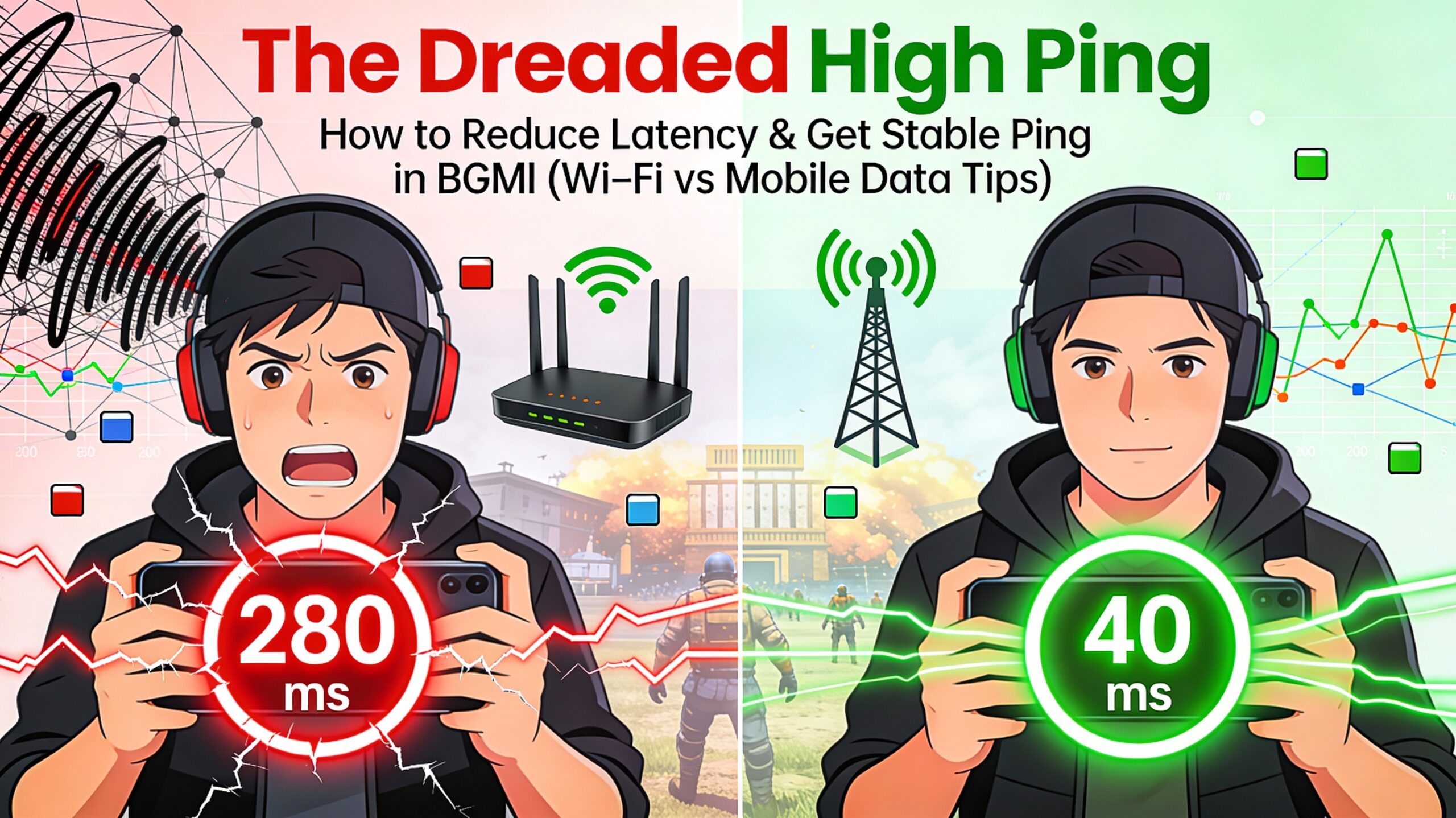
There is nothing more frustrating than landing a perfect spray only to see the red “High Ping” icon flicker, turning your smooth gameplay into a stuttering, delayed mess. High latency (ping) is often the invisible enemy that costs you the match.
Good news: You can absolutely fight back! Getting stable, low ping in BGMI requires a little network hygiene and knowing the right settings. Here is your definitive guide to slaying latency, focusing on both Wi-Fi and Mobile Data.
Understanding Ping: Why is it the Enemy?
Ping is the measure (in milliseconds, 1$ms$) of how long it takes for a data packet to travel from your phone to the BGMI server and back.2
- Below 60ms: Excellent. Near-instant response time.
- 60ms to 100ms: Playable, but you might feel slight delays in reaction.
- Above 150ms: High latency. You will experience delay, teleporting, and missed shots (shots register late).
1. Optimize Your Connection (The Foundation)
Whether you’re on Wi-Fi or mobile data, these steps are your first line of defense.
- Close All Background Apps: This is non-negotiable. Apps like Instagram, YouTube, and Netflix consume bandwidth and use up your device’s RAM, both of which increase latency. Force close them before you start playing.
- Disable Automatic Updates: Go into your phone’s settings (or the Play Store/App Store) and stop apps from automatically updating during your gaming session.3 A large background download will immediately spike your ping.
- Restart Router/Device: Sometimes, the simplest fix is the best. A quick reboot of your mobile device and your Wi-Fi router clears temporary errors and refreshes the connection.4
- Server Selection: Always ensure you are connected to the closest regional server (e.g., Asia or Middle East, depending on your location). Connecting to a distant server guarantees high ping.
2. Wi-Fi Warrior: Taming the Router
If you play primarily on Wi-Fi, these tweaks are crucial for a stable connection:
| Problem | Solution | Pro Tip |
| Distance/Obstacles | Get Closer to the Router. Walls, metal, and appliances disrupt the signal. The closer you are, the stronger and more stable the signal. | Use the 5GHz band on your router (if available). It offers faster speeds and lower latency than the common 2.4GHz band, though its range is shorter. |
| Network Congestion | Kick Others Off. Ask others on your network to temporarily stop streaming video, downloading large files, or using video calls while you play. | If you can, reserve bandwidth for your device through your router settings (look for QoS – Quality of Service settings). |
| Router Overload | Check the Channel. Routers in densely populated areas (apartments) can interfere with each other. Use a Wi-Fi analyzer app to find an uncluttered channel for your router. | Set a static IP address for your phone. This can sometimes speed up the initial connection process and reduce drops. |
3. Mobile Data Domination (4G/5G Tips)
When you’re out and about, mobile data needs to be optimized for gaming.
- Find a Strong Signal Area: Your ping depends heavily on the strength and quality of the cellular signal. Play near a window or outdoors, avoiding basements or thick walls.
- Check for 4G+ or VoLTE icons: These often indicate a better, more stable data connection.
- Disable Dual SIM Card: If you have a phone with two SIM cards, try temporarily disabling the data connection on the SIM you are not using for the game. This focuses resources on the active data line.
- APN Settings: Sometimes, manually resetting your Access Point Name (APN) settings to default can resolve unusual ping spikes caused by carrier issues.
- Consider a Game Booster App: Many modern phones have a built-in “Game Mode” or “Game Booster.”5 Use it! These tools prioritize network traffic for the game and block interrupting notifications.
4. Advanced Troubleshooting (Last Resort)
If the basics don’t work, consider these more technical options:
- Clear BGMI Cache: Go to your device settings, find BGMI, and clear the app cache (NOT the app data). Corrupted cache files can sometimes lead to connectivity issues.
- Use a VPN (Caution!): In rare cases where your internet service provider (ISP) has bad routing to the BGMI server, a gaming-focused VPN can sometimes find a better, more direct route, resulting in lower ping.6 Use this with caution, as some VPNs can actually increase latency.7
- Contact Your ISP/Carrier: If you consistently have high ping across all games and devices, the problem might be outside your home. Contact your service provider to check for regional outages or high latency on their end.
By following these steps, you take control of your network environment and ensure that the only thing stopping you from a Chicken Dinner is the skill of your opponent, not the lag!
Would you like to find some highly-rated network utility or monitoring apps for Android or iOS that can help analyze your connection quality?