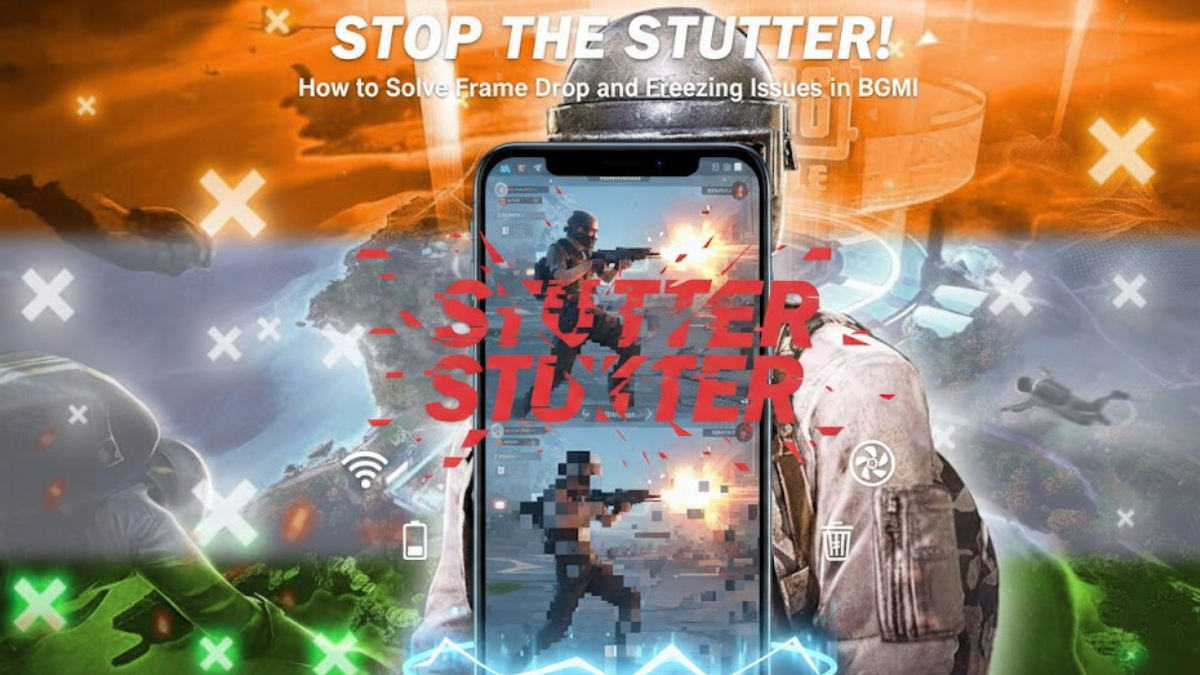
Is your BGMI game feeling more like a slideshow than a smooth battle royale experience? Are you constantly battling frustrating frame drops and freezing issues that cost you crucial gunfights and make the game unplayable? You’re not alone! Many players experience these problems, but the good news is that most of them can be solved with a few tweaks and optimizations.
Let’s dive into how you can stop the stutter and get back to enjoying BG BGMI at its best!
Why is Your Game Stuttering?
Before we jump into solutions, it’s helpful to understand what might be causing the problem. Common culprits include:
- Underpowered Device: Your phone or tablet might simply not have the processing power or RAM to handle BGMI smoothly, especially on higher graphics settings.
- Overheating: When your device gets too hot, it throttles its performance to prevent damage, leading to frame drops.
- Outdated Software: Both your game and your device’s operating system need to be up-to-date for optimal performance.
- Poor Internet Connection: A laggy or unstable internet connection can often manifest as visual stuttering.
- Too Many Background Apps: Other applications running simultaneously consume resources that BGMI needs.
- Incorrect In-Game Settings: You might be pushing your graphics settings too high for your device’s capabilities.
- Corrupted Game Files/Cache: Sometimes, temporary files or corrupted game data can cause issues.
Solutions to Get You Back in the Game
Here’s a step-by-step guide to troubleshooting and fixing those annoying frame drops and freezing issues:
1. Optimize Your In-Game Graphics Settings (The Most Crucial Step!)
This is often the biggest offender. BGMI offers a range of graphics settings, and not all devices can handle “HDR” or “Ultra HD” with “Extreme” frame rates.
- Graphics Quality: Start with “Smooth” or “Balanced.”
- Frame Rate: Aim for “High” or “Ultra.” Only go for “Extreme” if your device is a high-end flagship.
- Style: This is largely cosmetic, but “Soft” or “Colorful” might be slightly less demanding than “Realistic.”
- Anti-aliasing: Turn this OFF. It smooths jagged edges but is very resource-intensive.
- Shadows: Turn this OFF. Shadows add realism but drain performance.
- Auto-adjust graphics: Keep this OFF. You want manual control.
Pro Tip: Experiment! Lower your settings incrementally until the game runs smoothly, then try increasing one setting at a time to find the sweet spot.
2. Ensure Your Device and Game Are Up-to-Date
- BGMI Updates: Always download the latest game updates. Developers often include performance optimizations.
- OS Updates: Keep your phone’s operating system (Android or iOS) updated. System updates can include performance enhancements and bug fixes.
3. Clear Cache and Storage
Over time, your game and device accumulate temporary files that can slow things down.
- Clear BGMI Cache: Go to your device’s
Settings > Apps > BGMI > Storage > Clear Cache. Do NOT clear data, as this will delete your game files and require a re-download. - Clear Device Cache: For Android, you can often find a “Clear Cache Partition” option in your recovery mode (search for your specific phone model + “clear cache partition”). For iOS, a simple restart often helps.
4. Free Up RAM and Close Background Apps
Multitasking is great, but not when you’re gaming!
- Close All Background Apps: Before launching BGMI, manually close all other applications running in the background.
- Disable Notifications: Temporarily disable notifications from other apps to prevent them from popping up and consuming resources.
- Restart Your Device: A fresh restart clears RAM and stops any rogue background processes.
5. Check Your Internet Connection
A stable, low-ping internet connection is vital.
- Use Wi-Fi: Wherever possible, use a stable Wi-Fi connection over mobile data.
- Minimize Network Usage: Ask others on your network to avoid heavy internet usage (streaming, large downloads) while you’re playing.
- Test Your Ping: Use an in-game ping checker or a third-party speed test app to ensure your connection is stable. A ping consistently above 80ms can cause noticeable lag.
6. Keep Your Device Cool
Overheating is a performance killer.
- Remove Phone Case: If your phone case traps heat, remove it while playing.
- Avoid Charging While Playing: Charging generates heat, and playing simultaneously compounds the problem.
- Play in a Cool Environment: Don’t play under direct sunlight or in a hot room.
- Use a Cooling Fan (Optional): If you’re a serious mobile gamer, a clip-on phone cooling fan can make a significant difference.
7. Consider a “Game Booster” or “Gaming Mode”
Many modern smartphones come with built-in “Game Booster” or “Gaming Mode” features. These often:
- Prioritize game performance.
- Block notifications.
- Clear RAM automatically.
- Manage power consumption.
Explore your phone’s settings to see if it has such a feature and enable it for BGMI.
8. Reinstall BGMI (Last Resort)
If all else fails, a fresh installation can sometimes resolve deeply rooted issues or corrupted game files.
- Uninstall BGMI: Go to
Settings > Apps > BGMI > Uninstall. - Restart Your Device:
- Re-download and Install BGMI: From the Google Play Store or Apple App Store.
Conclusion
Experiencing frame drops and freezing in BGMI can be incredibly frustrating, but with a bit of patience and systematic troubleshooting, you can usually iron out these issues. Start with optimizing your in-game settings, ensure your software is updated, and manage your device’s resources effectively.